
Medical bills are typically hidden by default in InPractice because they’re usually not relevant to a medical chronology. If you need to export billing-related documents, you’ll first need to adjust your filters before running the export.
Step-by-step: Export medical bills
-
Open the Export tab for a case
-
Open "Filter Records"
-
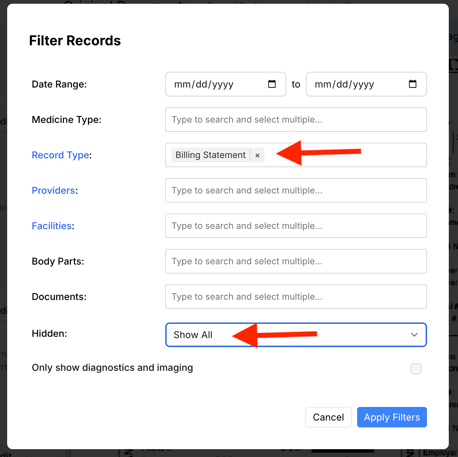
Filter by Record Type to include billing documents
- Include all billing related record types including:
- Billing Statement
- Invoice
- Itemized Bill
- Include all billing related record types including:
-
Change the Hidden filter to Show All
-
Why this matters: Bills are hidden by default because they’re not typically used in a medical chronology. Switching to Show All ensures hidden billing documents are included in your export results.
-
-
Confirm the export set
-
Run the export by clicking "Download Export"